What Is a Desktop Live Interview Prompter and How It Works
Learn what a desktop live interview prompter does, how its display and software work, and how to set one up for clearer, more natural video interviews.
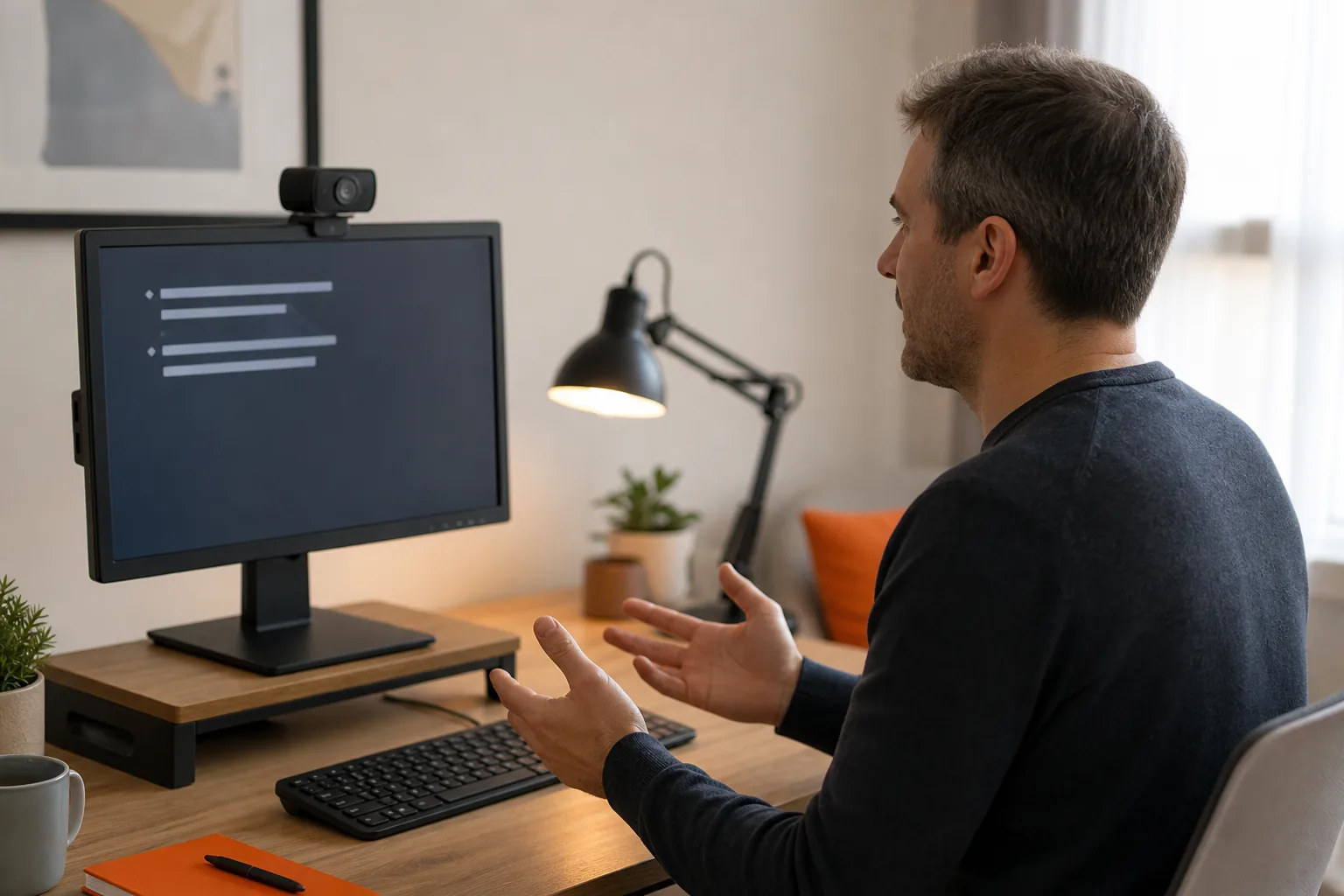
What is a desktop live interview prompter, and how does it work? It puts notes or a script near your camera so you can glance at them while speaking on a video call. The key is to keep those prompts brief and close to your eye line, so you stay engaged instead of reading at length.
We analyzed 5 top-ranking teleprompter pages (evenrealities.com, elgato.com, onestream.live, cueprompter.com, markertek.com) on desktop and software prompters and found none of the 5 mention AI-assisted interview tools as an alternative to scripted prompting, and 3 of the 5 skip lighting and eye-contact ergonomics. That leaves readers comparing tools without guidance on either topic covered here.
Table of Contents
- What a Desktop Live Interview Prompter Is
- How the Hardware and On-Screen Display Work
- Software Controls, Overlays, and Multi-Device Features
- Positioning, Lighting, Eye Contact, and Ergonomics
- Interview Benefits, Limitations, and AI-Assisted Alternatives
- Frequently Asked Questions
- Conclusion
What a Desktop Live Interview Prompter Is
A desktop live interview prompter is a way to view notes, a script, or a call window near the camera during a live video interview. The goal is to reduce the need to look down at a separate screen. Some setups use a physical teleprompter with reflective glass. Others use software to place a script or window on a desktop display.
In a traditional teleprompter, text scrolls on a screen and reflects off glass in front of the camera lens. The speaker can read the text while appearing to look toward the camera. A traditional teleprompter uses this basic mirror-and-script setup. A desktop version may skip the mirror and use a monitor, a small display, or an on-screen overlay instead.
That difference matters on a video call. A reflective teleprompter is built around a camera lens. A desktop setup is more likely to place notes beside or beneath a webcam, or to show the meeting window and notes on one screen. It can be as simple as a text document beside the call. More advanced software can keep a prompt window over another app.
A teleprompter shows words you prepare in advance. It doesn't automatically understand a new question or decide what answer fits. An AI interview assistant is a separate kind of tool: it can listen to speech, turn it into text, and generate suggested guidance. Phantom Code AI is an example for engineers preparing for coding, system design, and behavioral interviews. Its desktop assistant transcribes interview audio, recognizes problem types, and provides real-time guidance.
Use the right tool for the task. A teleprompter can keep a planned introduction or a short reminder in view. An interview assistant is designed to respond to questions as they happen. For a technical interview, that distinction is useful: a prepared cue might remind you to explain complexity, while a live assistant can help interpret a problem prompt.
A good prompter supports your own answer. It shouldn't replace listening. If you're reading full sentences, your gaze may move in a way that feels unnatural, and you can miss a follow-up. Treat the screen as a cue card, not a script to recite.
How the Hardware and On-Screen Display Work
A basic desktop setup needs a computer, a camera, and a place to show your notes. The camera may be built into your laptop or attached to an external monitor. Some dedicated prompters have their own display; software-only setups use the monitor you already have.
For a physical teleprompter, the display sits below or in front of reflective glass. The camera looks through the glass, while the speaker reads the reflected text. In a software setup, the notes appear on a screen near the camera. A virtual overlay can place one window over another, while an extended display gives the computer a second screen to arrange separately.
Before the interview, check that your computer detects every display you plan to use. If a second screen stays blank, check its power and cable connection first. Then check the computer's display settings and select the option to extend the desktop. If the monitor still doesn't appear, reconnect the cable and restart the computer with the display attached. A connection or display-driver issue may also need attention.
Keep the prompt window close to the camera lens. If it's far off to one side, your eyes will keep turning away from the interviewer. The text should also fit into a narrow area, so reading it doesn't require a long sweep across the screen. A few short lines near the top of the display are often easier to scan than a full-width document.
For an engineering interview, a small note might say “state assumptions” or “test empty input.” Those cues are easier to glance at than a paragraph explaining a whole solution. The prompt should help you remember your next move, while your spoken answer stays responsive to the interviewer.
Brightness matters too. A very bright window in a dim room can distract you or reflect in glasses. Lower its brightness until it's comfortable, then check the video preview. If you wear glasses, look for glare and adjust the light or screen angle rather than turning your face away from the camera.
Software Controls, Overlays, and Multi-Device Features
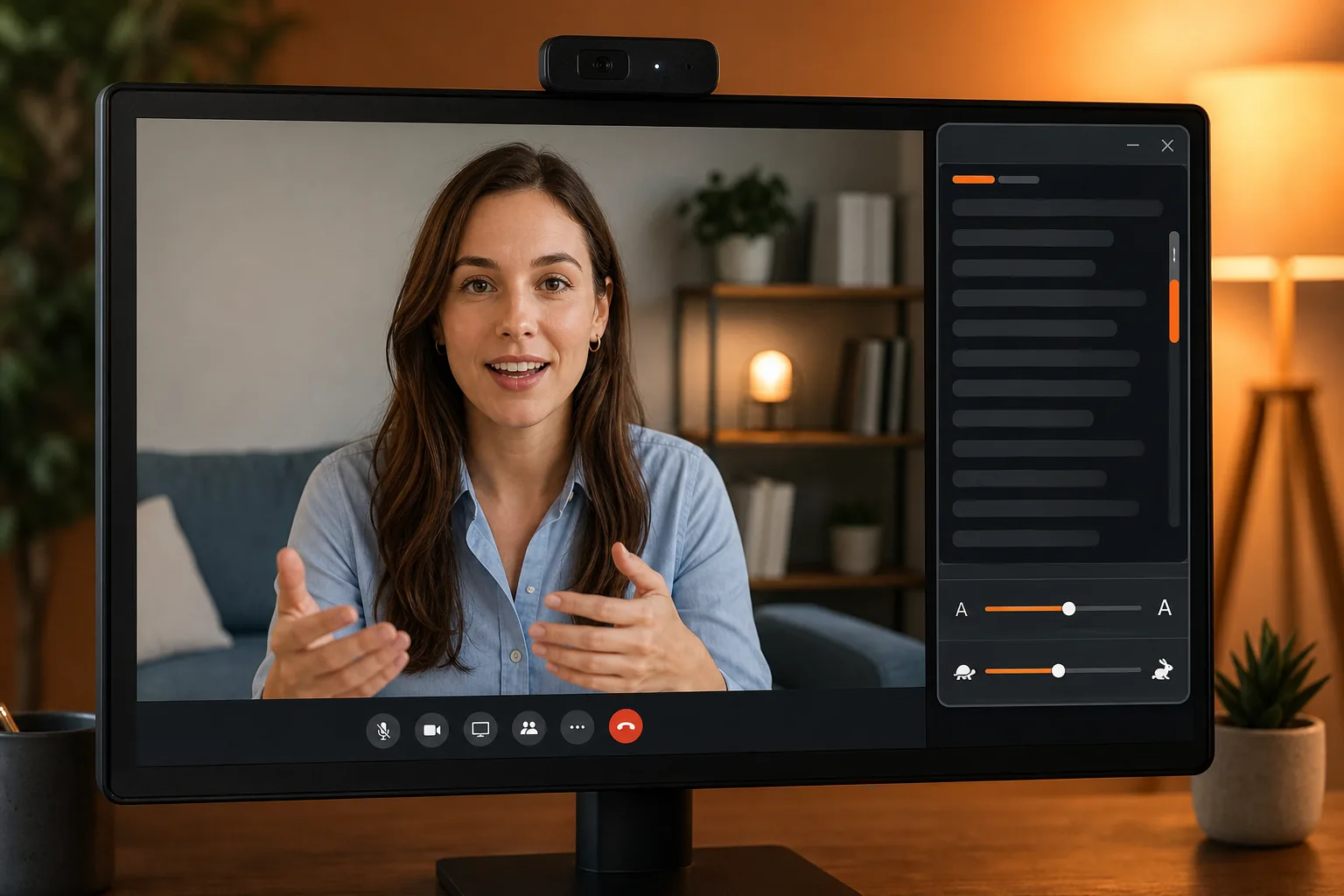
Prompter software usually gives you control over what appears and how it moves. Common settings include text size, line spacing, alignment, and scroll speed. Some tools let you scroll by hand, at a set pace, or in response to your voice. The right mode depends on whether you are reading a prepared script or checking a few cues.
Manual scrolling gives you direct control. It can work well for a short interview outline because you can move to the next cue when the conversation reaches it. Auto-scroll keeps text moving at a chosen speed, but it can get ahead if the interviewer interrupts. Voice-controlled scrolling follows speech, though a noisy room or a poor microphone can affect recognition.
Overlay features can place a call window beneath a script or show notes near the video feed. Some prompter apps offer manual, voice-based, and auto-scroll modes, and an overlay may place a selected window behind the script. The basic idea is to see the call and your cue without shifting between distant parts of the screen.
Some displays work as a second desktop screen, so you can move a meeting window onto the prompter and keep notes nearby. That is different from a software overlay. A second display changes where the computer places windows; an overlay changes how windows appear together. Check which method your setup uses before the call, then confirm that the webcam still captures your face as expected.
If you need to control the text from another device, some prompter apps can sync a script across devices. That can let you scroll from a phone or tablet while the main screen stays near the camera. For a standard one-camera job interview, this may add extra setup without much benefit. It is more useful when someone is presenting at a distance or when a crew member controls the script.
Accessibility controls can make prompts easier to read. Increase the font size and line spacing if small text strains your eyes. High-contrast text can help in a bright room. If voice scrolling is difficult to use, switch to manual control instead. The aim is a readable cue, not a screen full of text.
Before relying on an overlay, test it in the exact meeting app and display layout you plan to use. Start a test call, place the meeting window where you want it, and check what appears in your camera preview or screen share. Don't assume that every app handles overlays or display capture in the same way.
Positioning, Lighting, Eye Contact, and Ergonomics
Set the camera at about eye level, then place the prompt close to the lens. If your camera sits on top of a monitor, keep notes near that top edge. If it sits to the side, place the prompt on the same side so your glances stay small.
Keep your chair and screen position steady. A screen that sits too low can make you look down throughout the call. A chair that forces you to lean forward can make it harder to stay relaxed. Adjust the height before you join, then sit back and check your face in the preview.
Light your face so the camera can show it clearly. A window or lamp in front of you can provide soft, even light. A bright window behind you may make your face look dark. If you wear glasses, check for reflections and move the light off the direct line between the lamp and your lenses.
Eye contact should feel human, not fixed. Look at the camera while you explain a point, then glance at a cue when you need it. In a natural conversation, people look away briefly to think. A few short glances can look more relaxed than staring at the lens without a break.
Use spoken language in any prepared script. Short phrases are easier to read and easier to say in your own voice. For a behavioral answer, a cue such as “situation, action, result” may be enough. For a coding round, try a reminder like “clarify input, outline approach, test edge cases.” Then answer in your own words.
Practice with the actual font size and window placement you plan to use. Read a few lines aloud. If your eyes travel too far, narrow the text column or move it closer to the camera. If you keep losing your place, add blank space between ideas or use shorter cues. A quick test can catch those problems before the interviewer joins.
Reduce distractions in the room, too. Close alerts that could cover your notes or interrupt the call. Keep only the windows you need open. If you use a separate display, arrange it before the meeting instead of dragging windows around while the interviewer is waiting.
Interview Benefits, Limitations, and AI-Assisted Alternatives
A prompter can make a planned answer easier to deliver without memorizing every word. It can help you keep an introduction concise or remember the main points of a project story. For interviewers, a prompt can help keep a question sequence on track. In either case, it works best when it supports the conversation rather than taking it over.
There are limits. A fixed script can't adapt when an interviewer asks a follow-up or changes the question. Reading too closely can make your delivery sound flat. A second display or overlay can also take time to set up, and the layout may behave differently across apps. Test first, and keep a simple backup such as a short list of cues.
AI-assisted tools address a different need. Rather than only displaying text you wrote, they can use the interviewer's words to offer help while the conversation is underway. Phantom Code AI is designed for software engineers and supports preparation for coding, system design, and behavioral interviews. Its desktop assistant listens, transcribes, recognizes problem types, and provides real-time guidance.
That kind of support is not the same as a teleprompter script. A live coding question might require you to clarify the input, choose an approach, and explain trade-offs as you work. A fixed note can remind you to discuss edge cases. An AI assistant can help interpret the question and form guidance as it unfolds. You still need to understand and assess any suggestion before using it.
Rules and expectations matter. Check the interview's instructions before using assistance during a live assessment. If outside tools aren't allowed, use a prompter or AI assistant only for practice. In mock sessions, you can pause after a suggestion and solve the problem again without help. That shows whether you can explain the reasoning on your own.
When comparing tools, focus on the job they do. A classic prompter is for planned words and cues. A mock interview tool is for practice and feedback. A live assistant is for help during a real-time exchange, if the interview rules permit it. Phantom Code AI is relevant to the last two needs for software engineers, while its live assistant is aimed at real-time coding, system design, and behavioral interview guidance.
For a feature checklist, see our comparison of live interview overlay features for developers. Use those criteria to test the workflow you actually need, rather than choosing based on a long feature list.
One useful test is to run a mock interview with the same screen layout and audio setup you'll use later. Notice whether the prompt is easy to read, whether you can maintain eye contact, and whether you can still listen closely. If the screen pulls your attention away, reduce the amount of text or use a simpler setup.
Frequently Asked Questions
What does a desktop interview prompter do?
A desktop interview prompter keeps notes or a script near your camera during a video call. It can show prepared text on a monitor or place a call window and notes together on screen. It helps you glance at cues without looking down at paper, but it doesn't automatically understand questions unless it includes separate AI features.
Can I use a teleprompter during a Zoom interview?
Yes, if the interview rules allow it and your setup works with the meeting app. You can place brief notes near the webcam or use an overlay or second display to keep the call and prompts close together. Test the layout before the interview, and make sure you can still listen and respond naturally.
How do I make a prompter look natural on camera?
Keep the text close to the camera and use short cues instead of full paragraphs. Set a readable font size, then practice looking at the lens and glancing at the notes briefly. Speak in your own words. If your eyes keep moving across the screen, narrow the text area or move it closer to the webcam.
What is the difference between a teleprompter and an AI interview assistant?
A teleprompter displays text you prepared ahead of time. An AI interview assistant can process live interview input and generate guidance. They solve different problems: one helps you remember planned points, while the other may help you respond to a question as it happens. Check the interview rules before using either during an assessment.
Can I use an interview prompter on more than one screen?
Yes. A computer can use an extended display for the meeting or notes, while some software can sync a script with another device for remote control. The exact setup depends on the hardware and app. Test display detection, window placement, and scrolling before the call so you don't have to troubleshoot during the interview.
Conclusion
A desktop prompter works best as a small aid, not a script you read word for word. Set the text near your camera, test the display and call layout, and use short cues that leave room to listen. If you're preparing for a software interview, try a mock session with the same setup and decide whether notes or AI-assisted guidance fits your practice needs.