How to Set Up VS Code for Live Mock Interviews
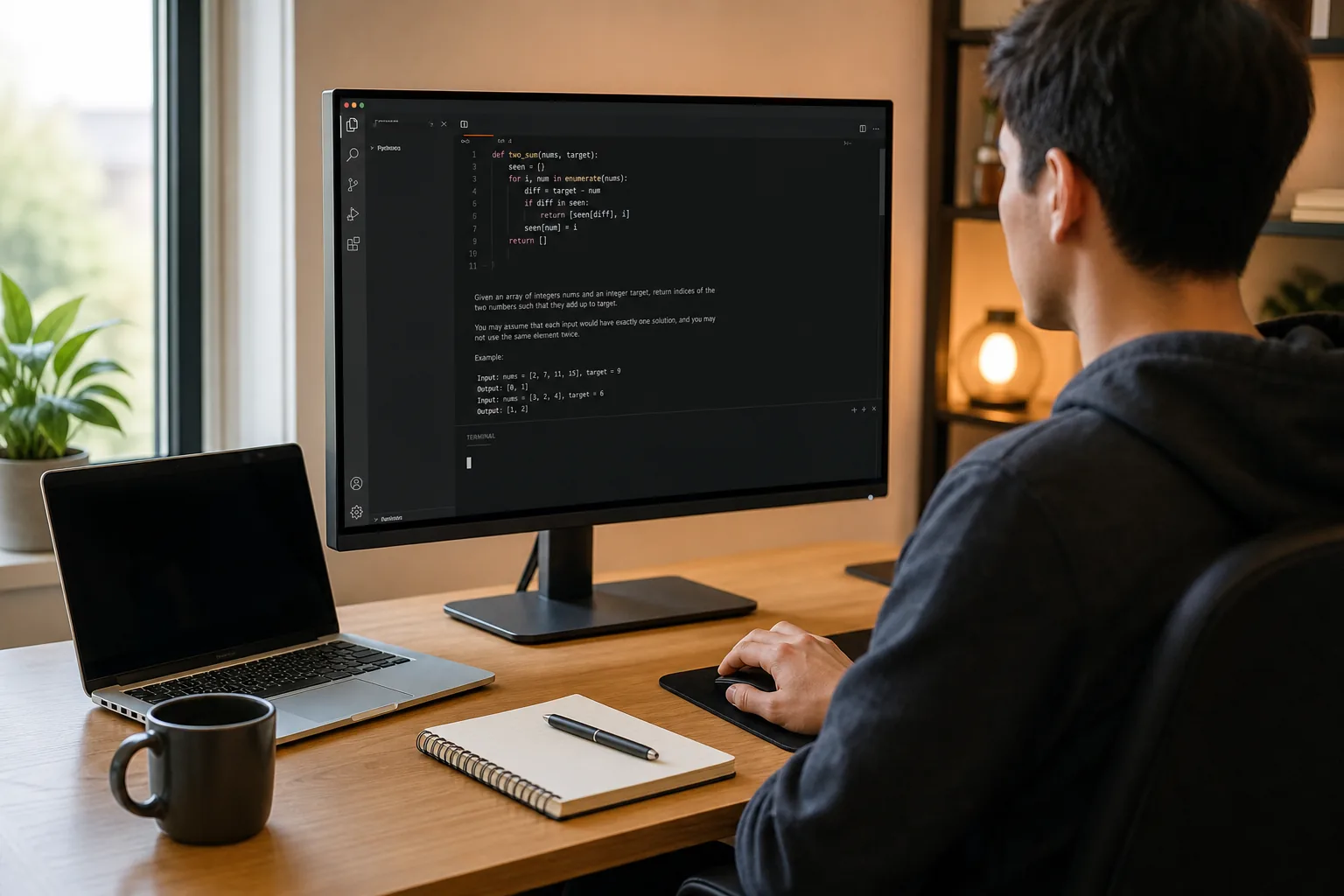
Set up VS Code for live mock interviews, prepare your workspace, connect Phantom Code AI, check audio access, and rehearse before your session.
Setting up VS Code for live mock interviews should be simple enough that you can focus on the problem, not your settings. To set up VS Code integration for live mock interviews, prepare a clean workspace, confirm the interview rules, then test your coding and audio workflow before the session.
The setup below covers local VS Code practice and a live assistant such as Phantom Code AI. Keep AI use within the rules set by your mock partner or interview team.
We analyzed 1,072 negative post-interview comments from Classet's published dataset of 10,167 AI interview ratings collected January to August 2026 and found audio or microphone problems were the single largest complaint, cited in 27.5% of comments. Audio, dropped calls, and device issues together accounted for 54% of all negative feedback.
Table of Contents
- Step 1: Check Your VS Code, Device, and Interview Requirements
- Step 2: Prepare a Clean VS Code Workspace for the Mock Interview
- Step 3: Connect Phantom Code AI and Configure Audio Permissions
- Step 4: Set Up a Workflow for Coding, System Design, and Behavioral Practice
- Step 5: Run a Full Rehearsal and Troubleshoot Common Issues
- FAQ
- Conclusion
Step 1: Check Your VS Code, Device, and Interview Requirements
Start by confirming what the session allows and what setup it expects. A mock may use your local VS Code window, a shared browser IDE, or a prepared project. Those setups don't work the same way.
Ask the session host which editor to use and whether AI support is allowed. If you're preparing for a real interview, check the recruiter’s instructions before enabling any assistant. Some interviews restrict AI tools or require you to disclose them. A mock is a good place to practice within the same rules.
Next, check your computer. Phantom Code AI runs on macOS and Windows. Confirm that your machine can open VS Code and run the programming language you plan to use. Open a small sample project, run one file, and check that the terminal shows the output you expect.
If your mock uses a hosted interview workspace, check its workflow too. Follow the host’s instructions for choosing an editor and opening a project. For a private repository, confirm access and import steps with the host before the interview.
That distinction matters. A local VS Code folder won't automatically appear in a hosted interview. If the session uses a shared environment, follow its import steps before the call. Keep a copy of the project ready, and confirm you can open the right files.
Milestone: You know which editor the mock uses, whether an assistant is allowed, and which project you'll open.
Step 2: Prepare a Clean VS Code Workspace for the Mock Interview
A clean workspace cuts down on distractions. Open only the project you'll use, choose the right language mode, and keep the terminal or test panel easy to reach. Close old tabs that could lead you into the wrong file while you're explaining your approach.
Keep your setup close to the rules of the interview. If you're expected to solve problems without code generation, turn off tools that write code for you. Leave basic editor features you know how to use. A readable font and familiar keyboard shortcuts matter more than a long list of add-ons.
VS Code lets you set options for your whole account or for one project. Project settings live in a .vscode folder at the project root and can override your user settings. You can change settings through the visual editor or in a JSON file.
Use project settings when a mock needs a specific font, file exclusion, or editor behavior. Keep personal preferences in user settings. That split helps prevent a practice-only change from affecting every project you open. If the editor starts acting oddly, search settings for @modified to review changes from the defaults.
Before the mock, open the project from its root folder. Run one small test or sample input. If you use language-specific templates, keep them short and test their scope first. A template that inserts the wrong language or a large block of code can interrupt your explanation. Check that each template uses the right prefix and language scope.
Milestone: Your target files open, your run command works, and the editor behaves as expected.
Step 3: Connect Phantom Code AI and Configure Audio Permissions
Phantom Code AI is a desktop interview assistant, so plan to use it alongside VS Code rather than assuming it appears as a standard editor panel. Its workflow includes listening to interview audio, transcribing it, recognizing question types, and giving guidance during practice.
Install the app for your operating system, then sign in and set your language preferences. The Phantom Code AI site says the app runs on macOS and Windows. The site also describes support for mock and live technical interview practice.
Audio access is the part to test before a session. Open your computer's privacy settings and allow microphone access for the app if the operating system asks. Check that your microphone is selected and that your mock partner's voice comes through clearly. If you're using headphones, test them with the same device and connection you'll use during practice.
Do a short test with a permitted mock prompt. Speak at your usual pace, then check whether the assistant can hear the interviewer and capture the key details. If the prompt includes a constraint such as “return the shortest path” or “use constant extra space,” confirm that it was heard correctly before relying on any guidance.
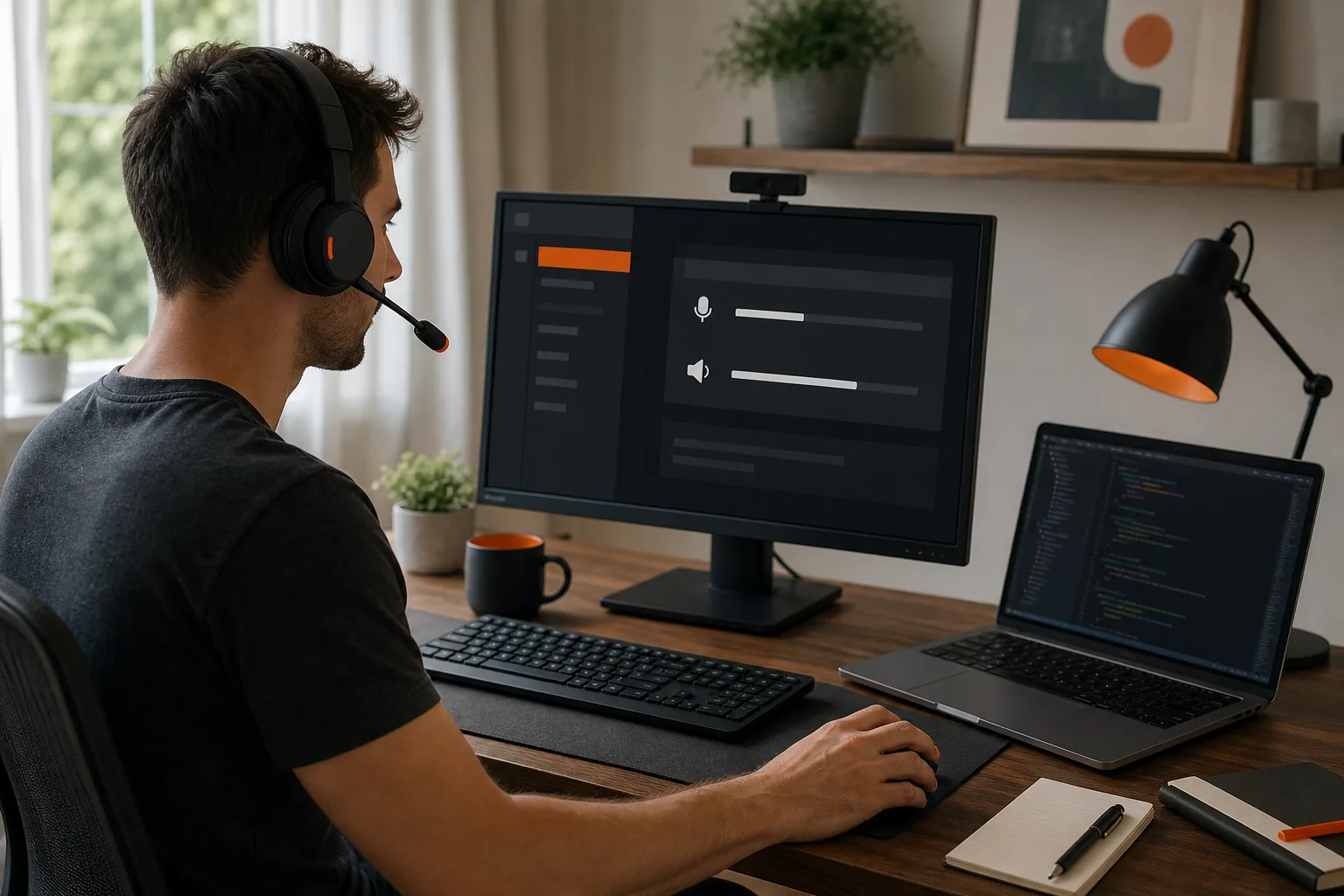
Phantom Code AI includes a Fast Think option for quicker responses to time-boxed DSA prompts. Try it during a mock so you can judge whether its pace fits your workflow. Treat any suggestion as something to review and explain, not a script to repeat. If the mock host has said AI isn't allowed, leave the assistant off.
Milestone: You can launch the assistant, grant the needed audio access, and confirm that speech is captured well enough for a practice prompt.
Step 4: Set Up a Workflow for Coding, System Design, and Behavioral Practice
Use a different practice routine for each interview type. A DSA round asks you to reason about an algorithm and test it. A system design mock asks you to shape a service and explain trade-offs. A behavioral round depends on clear, relevant examples. One workspace can support all three, but your notes and timing should match the task.
For DSA practice
Read the prompt aloud, restate the goal, and ask about input limits or edge cases. Then describe a simple approach before you code. For a graph problem, for example, say whether you expect breadth-first search or depth-first search to fit, and explain what you need to track.
Write a small test before you run the full sample. Try an empty input or a one-item case when it makes sense. After the code runs, state the time and space costs in plain words. If you ask Phantom Code AI for help during an allowed mock, use its response to check your reasoning and explain any change you make.
For system design practice
Start with the users and the main action the service must support. For a URL shortener, clarify how a user creates a short link and what happens when someone opens it. Sketch the main parts before discussing storage or scaling. Keep the diagram or notes visible while you talk.
Ask the mock partner to challenge one decision. For example, discuss what happens if a cache has stale data or a storage service slows down. Your goal is to explain the trade-off, not to name every possible component.
For behavioral practice
Keep a short set of story notes in a separate file, not mixed into the code you plan to share. For each example, note the situation, your own action, and the result. Practice answering in your own words instead of reading a finished paragraph.
Before the session, decide what the assistant may do. It can support practice where permitted, but it shouldn't replace your own answer or violate the mock’s rules. A clear boundary makes it easier to practice the skill the session is meant to test.
Milestone: You have a repeatable routine for the interview type, plus a clear rule for when AI assistance stays off.
Step 5: Run a Full Rehearsal and Troubleshoot Common Issues
Don't stop after checking that the app opens. Run a timed rehearsal using the same computer, headset, VS Code project, and audio setup you'll use for the mock. Start the timer, open the prompt, and follow the rules you expect to follow in the session.
Notice where you lose time. Do you search for the terminal? Does the microphone sound faint? Does a test command depend on a file you forgot to open? Fix one issue at a time, then repeat the part that failed.
If VS Code can't find a project file, open the project root instead of an individual source file. If a test won't run, check the language runtime and command in a small practice file. If a hosted interview can't see your private repository, confirm you created and saved the take-home project and completed GitHub authentication first.
If audio capture fails, check operating-system permission, the selected input device, and the app's access. Then restart the test prompt. If speech is captured but key details are wrong, slow down when reading the question and say constraints clearly. Don't assume the assistant understood a prompt you haven't checked.
For a mock with AI support, make sure the host permits it and that you can explain any suggestion you use. For a real interview, follow the company's policy instead. A tool's visibility settings don't change the rules of the session, and hidden use can breach trust or the interview terms.
Use this short rehearsal checklist:
- Open the right project and run one test.
- Check microphone access and sound.
- Confirm any assistant is allowed for this session.
- Practice one prompt without stopping the timer.
- Write down the setup issue to fix before the next run.
Keep the focus on the steps you can verify in your own setup.
Milestone: You can finish a timed practice round without changing devices or fixing basic setup problems mid-session.
FAQ
Can I use Phantom Code AI inside VS Code?
Phantom Code AI is a desktop assistant, so set it up alongside VS Code rather than expecting it to appear as a built-in editor panel. Prepare your code in VS Code, then test the assistant and audio workflow separately. Always check whether the person running your mock allows AI assistance before you use it.
Do I need GitHub authentication to load a private repository?
Accessing a private repository generally requires authentication with an account that has permission. Confirm your access before the mock, then open the project in your interview workspace.
What should I test before a live mock interview?
Test the exact project and language you'll use. Run a small test, confirm your microphone works, and check that any permitted assistant can hear the prompt. Then complete one timed practice question. That rehearsal can reveal setup snags, such as a missing runtime or a project that opens in the wrong folder.
Should I use an AI assistant during a real interview?
Use an AI assistant only when the interview rules allow it. Ask the recruiter or interview host if the policy isn't clear, and follow any disclosure requirement. A mock can help you practice with an assistant when permitted, but you should also practice without one so you can work within different interview rules.
Conclusion
Set up VS Code first, then test audio and any permitted assistant in the same timed rehearsal. If you're using Phantom Code AI, practice reviewing its guidance in your own words. Your next step: open your interview project now and run one short mock prompt from start to finish.